
Lighting Techniques That Make Environments Feel Real
Learn how three-point lighting works in Unreal. We’ll cover directional lights, point lights, spotlights, and how to balance them for believable scenes.
Read ArticleNavigate the viewport, understand panels, and organize your workspace. Most people spend their first week just learning where everything is — that’s normal.
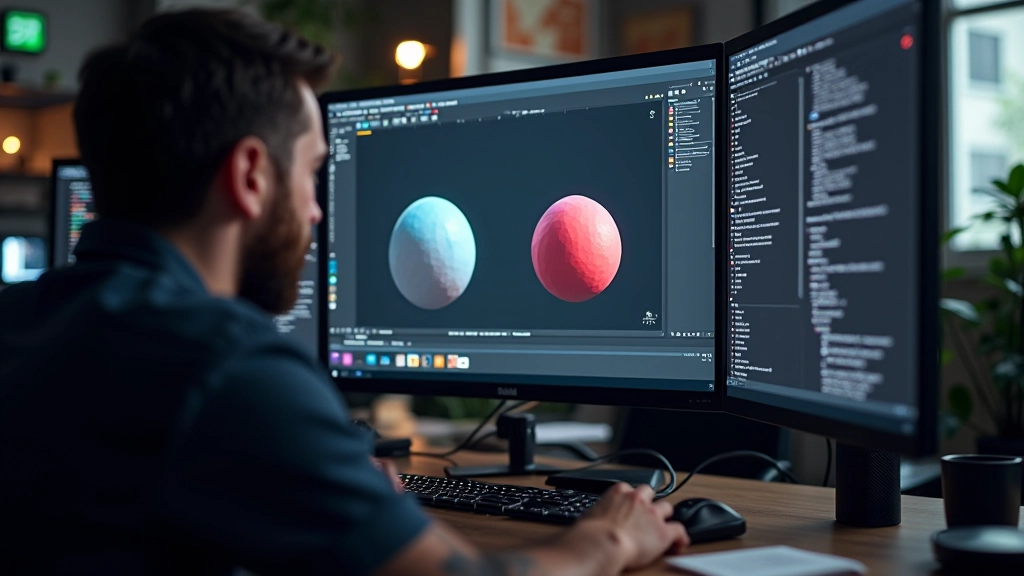
When you first open Unreal Engine, the interface can feel overwhelming. There’s the viewport in the middle, panels everywhere, buttons you’ve never seen before. It’s not that the editor is poorly designed — it’s just feature-rich. The good news? You don’t need to understand everything right away.
This guide walks you through the core areas you’ll use in your first month. We’re not covering advanced features. Just the essential viewport controls, the panel system, and how to set up your workspace so you’re not constantly hunting for tools.
The viewport is the large 3D space in the center. That’s where you’ll spend most of your time. Everything you build appears here first.
The viewport has a few essential controls you’ll use constantly. Middle mouse button rotates your view — hold it down and drag. Right-click and drag moves you around. Scroll wheel zooms. On a trackpad? You’ll want to switch to a mouse pretty quickly. Trackpad controls exist but they’re not intuitive.
There’s a gizmo in the top-right corner showing three colored axes — red, green, blue. That’s your orientation helper. Rotate the view and watch those axes move. It helps you understand where you’re looking. There’s also a small grid icon you can click to snap to specific angles, which is helpful when you need a straight overhead view or a perfect side view.


Around the viewport, you’ll see panels. Each panel does a specific job. The left side usually has the Outliner — that’s your scene hierarchy. It lists every actor in your level. Click something in the Outliner and it highlights in the viewport. This is how you select objects when they’re hard to click directly.
The right side typically has the Details panel. Select an object and its properties appear here. Want to move something 50 units? Type it in the Details panel instead of dragging. Want to change the color? It’s here. This panel is incredibly powerful once you realize it’s not just for viewing — you can edit almost everything through it.
The bottom usually shows the Content Browser. This is your asset library. Every model, texture, and sound you’ve imported lives here. You drag assets from the Content Browser into the viewport to place them.
Keyboard shortcuts save you enormous amounts of time. You don’t need to memorize 50 of them. Just these five will get you through your first month:


Your first week in Unreal will be spent learning the interface. That’s completely normal. Don’t try to master everything at once. Focus on the viewport controls and the three main panels — Outliner, Details, Content Browser. Once those feel natural, you’ll be ready to actually build something.
Here’s the real secret: spend an hour customizing your workspace to feel comfortable. Move panels around. Resize them. Create a layout that makes sense for your workflow. The default layout works, but a personalized one will make you faster. Then save that layout as your default.
And honestly? The best way to learn the editor is by building something. Even something small. Place a few objects, move them around, change their colors, save the level. The muscle memory will develop quickly, and suddenly the interface stops feeling foreign.